Overview
Every AI Pricing Model is already running a traffic distribution. From the moment you launch one, it holds an AI Model row set to the weight you chose at launch and a Baseline row holding the remainder, and every paywall request that reaches the model is split between those two rows. Traffic Control is where you see that dial and change it.
Changing it means more than moving the two starting rows. You can add other placements to the split, so a share of the model's traffic goes somewhere you choose, and you can schedule a different split to take over for a fixed window and hand traffic back on its own.
To open it, click AI Pricing Models in the left sidebar, open a model, and select the Traffic Control tab. You do not have to create a distribution first. Every model already has one, so the tab opens on the split the model launched with, ready to read or edit. Traffic Control is available on Pro plans and above. Owner and Admin seats can change the distribution, Viewer seats can read it but see no controls.
What you can do here
-
Cap how much traffic the model decides. Lower the AI Model row and give the remainder to the model's baseline paywall. See the three allocation targets.
-
Hold a slice back for a creative you are not ready to hand to the model. Put the creative behind a placement, add that placement as a row, and give it the share you want. See Create Placements.
-
Run an A/B test on part of your traffic. Point a row at a placement that is running an A/B test, and that share of requests goes into the test while the model keeps the rest. See A/B Tests in Traffic Control.
-
Schedule a seasonal takeover that reverts on its own. A scheduled distribution replaces the always-on one for the window you set, then hands traffic back automatically. See Scheduled Distributions.
The three allocation targets
A distribution is a list of rows. Each row has a target and a weight, and the weights must total exactly 100 before the distribution can be saved. There are three kinds of target.
| Target | What it serves |
|---|---|
| AI Model | Hands the request to the AI decision service, which picks one of the paywall variants attached to this model. Within this model it is the only target that sets isExperiment: true on the response. |
| Baseline | The paywall currently set as the model's Baseline Paywall, which is the single paywall in the model flagged as best. Baseline is not a separate object, it is that one paywall, so the row on screen carries that paywall's own name and a Paywall chip rather than the word Baseline. Changing the model's Baseline Paywall changes what this row serves. |
| Placement | Whatever that other placement is currently serving. The request is handed to the placement and resolved from scratch, so it can land on a plain paywall, an A/B test, or another AI Pricing Model. The response carries whatever flag that result carries, which is unset for a plain paywall and for an A/B test. |
That last row is the flexible one. Because a placement row serves whatever the placement is serving at the time, you can point a share of the model's traffic at an A/B test, at a seasonal creative, or at a second model, without changing which paywalls this model runs. Running an A/B test on a share of traffic is covered in full on A/B Tests in Traffic Control.
You always point an allocation at a placement, never at a paywall ID. Traffic Control has no paywall target. If you want a specific creative in the mix, put it behind a placement first. See Create Placements.
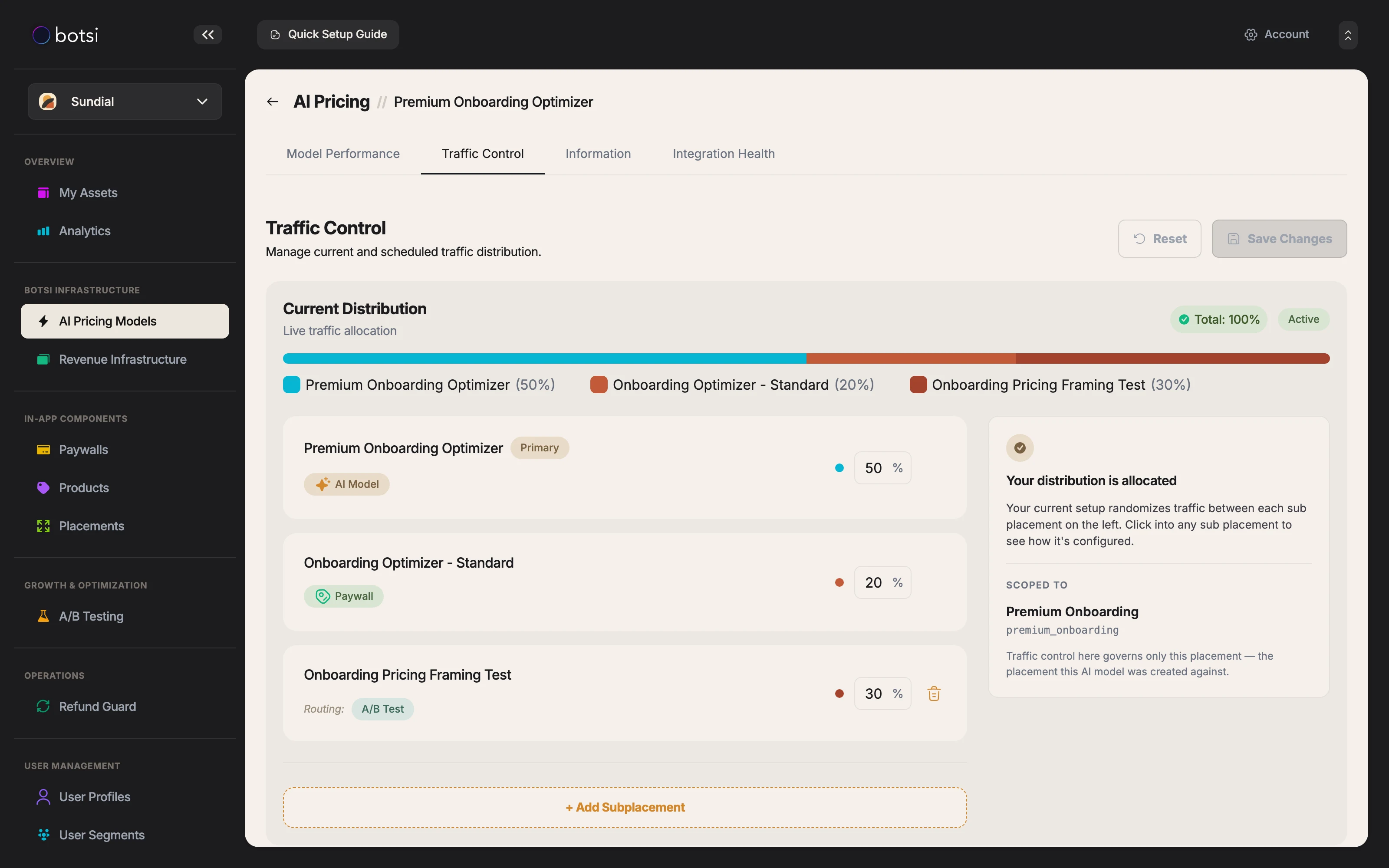
The distribution above uses all three targets: the model decides 50% of requests, the model's baseline paywall serves 20%, and a placement that is currently routing to an A/B test serves 30%. The stacked bar is the same split drawn to scale, Total: 100% confirms the distribution can be saved, and the Active badge means this is the split serving right now. Selecting a row fills the right-hand panel, where Scoped to names the placement the allocation resolves through. + Add Subplacement adds another placement row.
The always-on distribution and scheduled distributions
Every model has exactly one always-on distribution. It is the one created with the model, it has no end date, and it is the split the model always returns to. Editing it is how you change the model's steady state.
Scheduled Distributions are additional splits, each with its own start and end. While a schedule's window contains the current moment, that schedule fully replaces the always-on distribution. Nothing is blended, and the always-on weights are ignored for the duration.
-
The start time is inclusive and the end time is exclusive.
-
At the end of the window, traffic reverts to the always-on distribution automatically, on the very next request. Nothing needs to be switched back.
-
No background job runs. The active window is worked out per request against the server clock, so a schedule that has just started or just ended takes effect immediately.
-
Only one scheduled window may cover any given moment. A save that would create an overlap is rejected, and a schedule left without an end date counts as covering everything after its start, so it blocks every later schedule.
-
Schedule dates and times are entered and displayed in your browser's local timezone.
Setting one up, including the constraints to plan around, is covered on Scheduled Distributions.
The Current Distribution heading is positional. While nothing is scheduled, the always-on distribution is titled Current Distribution. While a schedule is running, that section is retitled Default Distribution and marked Paused, and a second section titled Current Distribution appears for the schedule that is actually serving. Read Current Distribution as a label for whatever is serving right now, not as a fixed name for one distribution.
How the split is applied
Each paywall request draws its own target from the weights, independently of every other request. Over any meaningful volume of traffic, the share each target actually serves converges on the numbers you configured, and it gets there quickly, because there is no cohort to fill up and no assignment table to keep in step with your edits. When you change a weight, the new share applies from the next request onward.
Weights are read at serve time as a share of their total, and a save cannot complete unless they total 100, so the number on the row and the share it serves are the same. If something changes the rows after the save and the total drifts off 100, the remaining rows are renormalised at serve time and the effective split stops matching the numbers on screen. The two ways that happens are listed in Good to know.
Two more things follow, and they matter when you read results:
-
The weights describe a share of requests. A user who fetches the paywall more than once can be drawn to a different target on a later fetch.
-
There is no warm-up and no drain. A distribution starts serving at its configured share immediately, and no traffic is left behind on the previous numbers.
Good to know
-
Weights must total exactly 100. Save Changes stays disabled until they do, and the total is shown above the distribution as you edit.
-
Allocations target placements, not paywalls. There is no paywall target anywhere in Traffic Control. Put the creative behind a placement and point the row at that placement.
-
The AI Model and Baseline rows cannot be removed, only re-weighted. Neither row has a delete control. To take one out of the split, set its weight to 0, which is a valid saved value.
-
A baseline at 0 can still serve. The baseline paywall is also what the AI Model target falls back to whenever it cannot get a decision, so it can be served even when its own row is set to 0.
-
A request with no profile ID never reaches the AI Model target. That request serves the baseline paywall instead, whatever the weights say. The same fallback applies if the decision service errors, times out, or returns nothing. Because the fallback is the baseline, a model with no paywall flagged as best has nothing to fall back to and the request fails.
-
Deleting a placement removes any allocation pointing at it. The row disappears with the placement and nothing revalidates the distribution, which leaves it totalling less than 100 and the remaining rows renormalised at serve time. Reopen Traffic Control after any placement cleanup and re-check the numbers.
-
Editing the model's weight rewrites part of the split. Changing the weight on the model edit screen rewrites the AI Model and baseline rows of the always-on distribution and leaves any placement row untouched, so a distribution containing a placement row can end up totalling more than 100 and is renormalised at serve time. Reopen Traffic Control after any model weight edit and re-check the numbers.
-
Saving the always-on distribution writes back to the model. The paywall flagged as best keeps that flag and has its stored weight rewritten from the weights you just saved. The model's own weight field is not updated, so it goes stale after a Traffic Control edit, and the next edit on the model screen rebuilds the AI Model and baseline rows from that stale number. Scheduled saves do not do this. Treat the two screens as one setting.
-
Reporting cannot break out the arms separately yet. Baseline traffic and placement traffic both land in the model's baseline column, so there is no per-arm column to read. To measure a placement arm today, look at the paywalls that placement serves rather than at the model's own split.
Never point an allocation at this model's own placement, or at a placement that routes back to it. Nothing rejects a loop like that when you save it. It is caught at serve time instead, and the paywall request fails with Circular placement allocation detected rather than returning a paywall to your app. Pick a placement that cannot resolve back to this model.
Related
Botsi also has placement-level A/B testing, configured on a placement rather than inside a model. It is the sibling feature for a different job, and the two are easy to tell apart:
-
Use placement-level A/B testing on its own when the test is the whole story for that placement. Every request matching the audience goes into the test, you set the variants and their weights on the placement, and you read the results per variant. See A/B Tests Overview and Perform an A/B Test.
-
Use Traffic Control when an AI Pricing Model owns the placement and you want to decide what share of its traffic goes where, including sending a share to a placement that is running an A/B test.
They also work together. A Traffic Control row pointed at a placement that runs an A/B test gives you both at once: the model on most of your traffic, a real placement-level test on the share you set aside. See A/B Tests in Traffic Control.
See also
- Scheduled Distributions: run a different split for a fixed window and revert automatically.
- A/B Tests in Traffic Control: hold back a share of traffic and point it at an A/B test.
- AI Pricing Integration Guide: create the model and set its initial distribution.
- How AI Pricing Models Work: what an AI Pricing Model selects, and what it does not do.
- Create Placements: put a creative behind a placement so Traffic Control can target it.