Superwall
Integrate Botsi AI Pricing with Superwall so each user sees the optimal paywall based on Botsi's prediction. Superwall handles display through Campaigns and Audiences. Botsi decides which paywall that user should get.
Complete the AI Pricing Model Setup first. This page assumes the Botsi side already works end to end.
Integration flow#
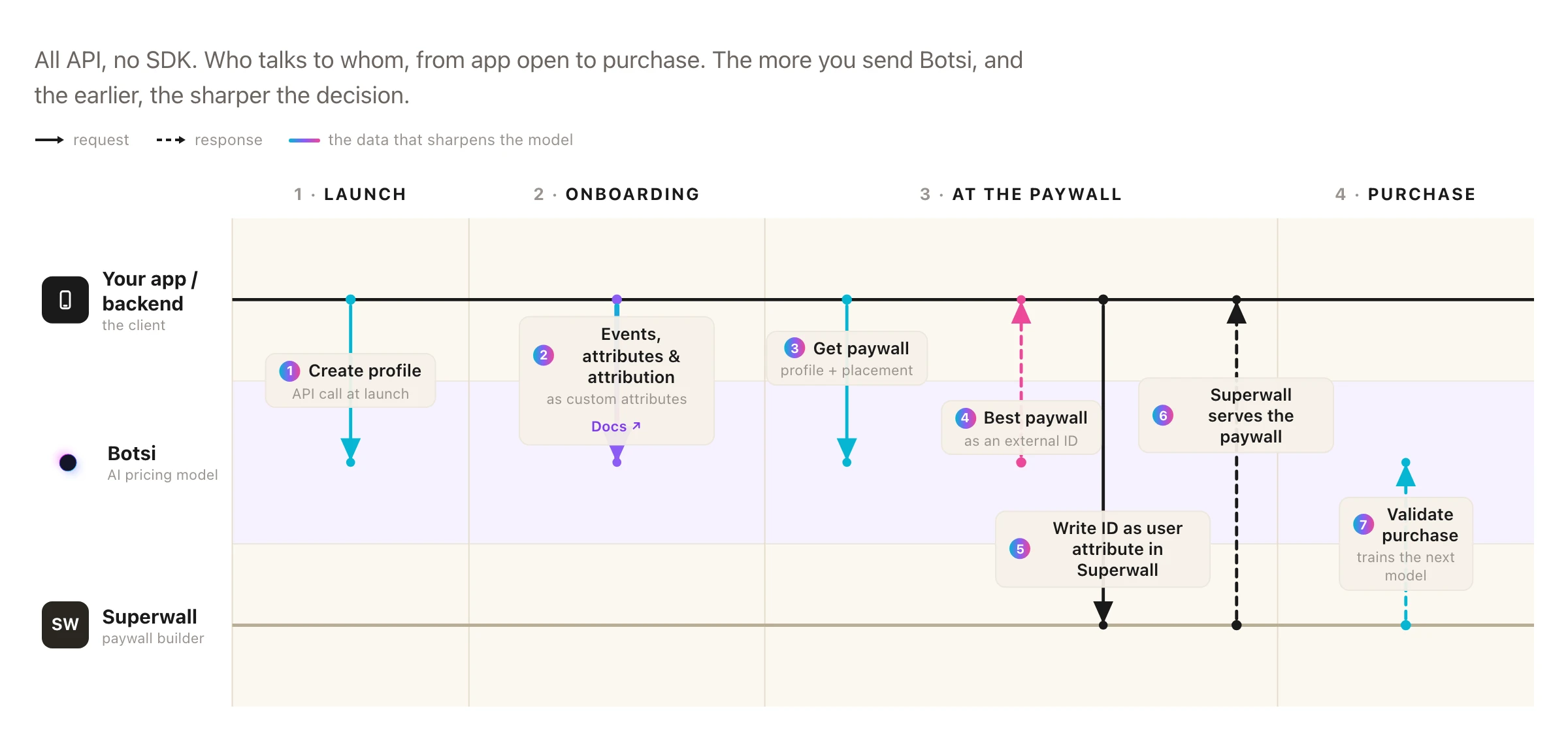
- Create a Botsi Profile at launch and keep the
profileId. - Send events, attributes, and attribution during onboarding so the model has signal.
- Call Fetch Paywall with the profile and placement → receive the predicted
externalId(andpaywallSessionId). - Set a Superwall user attribute to that
externalId. - Register a Superwall placement → Superwall matches Campaign audiences and presents the paywall.
- Send
paywall_shownvia the Send Paywall Shown Event API when the paywall is presented. - Validate the purchase with Botsi after a successful Superwall transaction.
See the full API sequence in the AI Pricing Model API.
Matching paywalls in Superwall and Botsi#
Decide which prices you want to show, then configure paywalls on both sides with the same products.
In Superwall, create Paywalls with the products and price points you want to test. For several annual price points:
- Paywall
standard_paywall— annual →com.app.pro.annual_standard - Paywall
discounted_paywall— annual →com.app.pro.annual_discounted
Then create corresponding Paywalls in Botsi and attach the same Products. That is what tells the model which prices are available to choose between.
External ID and Fetch Paywall#
Set the external ID on each Botsi Paywall when you configure it. Any unique value works; a readable convention pays off when you see the same string in Superwall audiences and Botsi analytics (for example onboardingPaywall_29.99Annual_v2).
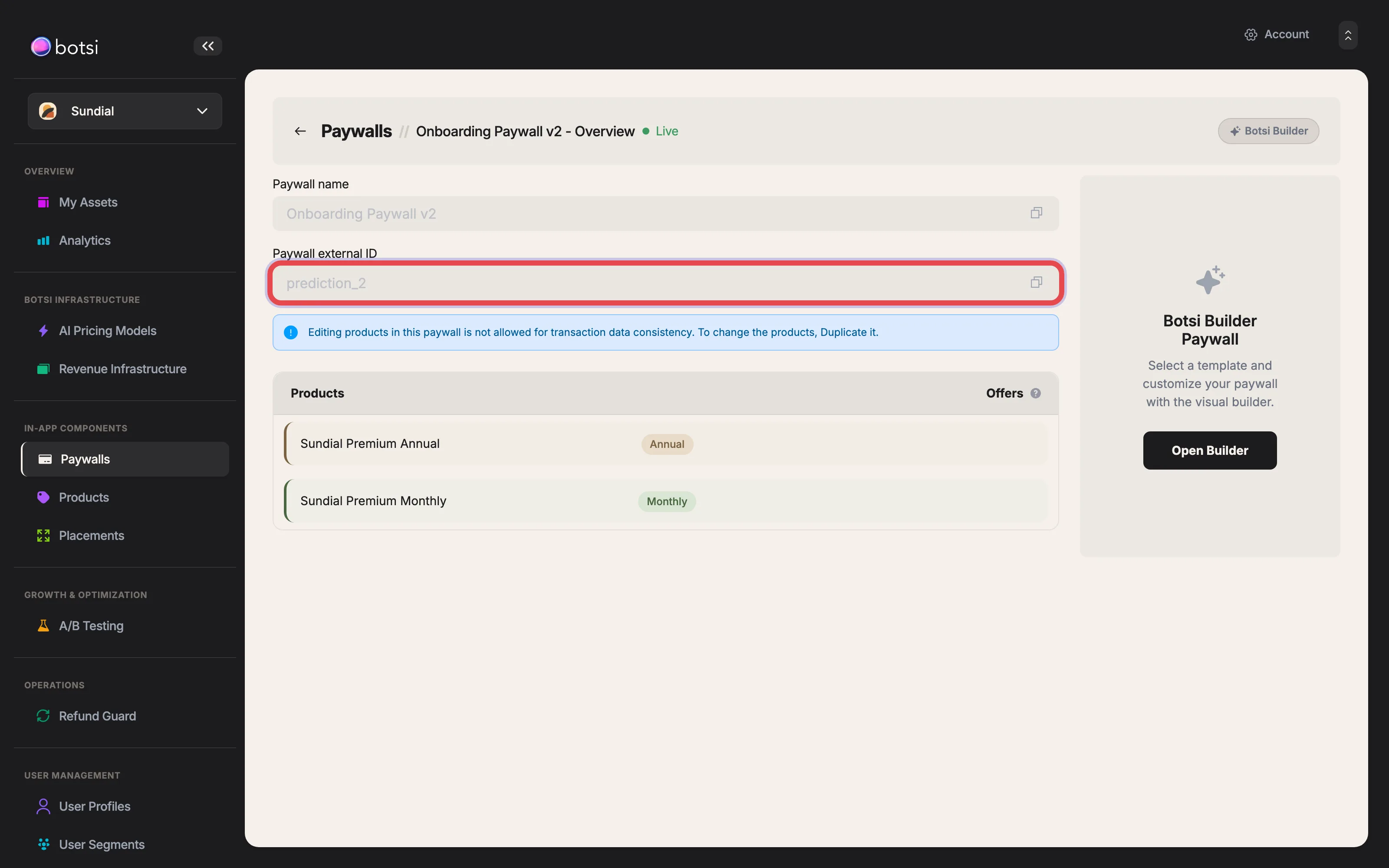
Fetch Paywall returns that value as data.externalId.
Campaign audience targeting#
Write the externalId into a Superwall user attribute, then register the placement. Use something like botsi_paywall_id or botsi_paywall_prediction for readability.
Configure Campaign audiences to filter on that attribute so each predicted ID maps to the matching Superwall Paywall. See Superwall's Campaigns and Audiences docs.
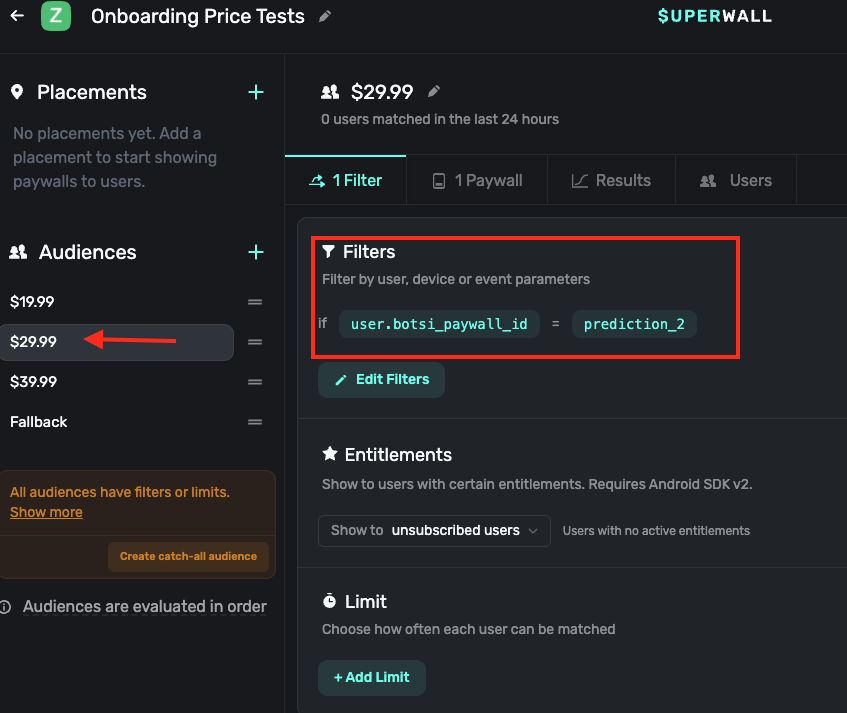
Set the attribute before registering the placement
Superwall evaluates Campaign audiences when you call register(). An attribute written afterwards does not change the paywall already selected. The user sees whichever audience matched with the attribute missing.
// Set the user attribute with Botsi's predicted paywall ID
Superwall.shared.setUserAttributes([
    "botsi_paywall_id": botsiExternalPaywallId
])

let handler = PaywallPresentationHandler()
handler.onPresent { _ in
    // Send paywall_shown to Botsi here
}

// Then register — Superwall uses the attribute for audience matching
Superwall.shared.register(
    placement: "your_placement_name",
    handler: handler
)// Set the user attribute with Botsi's predicted paywall ID
Superwall.instance.setUserAttributes(
mapOf("botsi_paywall_id" to botsiExternalPaywallId)
)
// Then register the placement
Superwall.instance.register(placement = "your_placement_name")await Superwall.shared.setUserAttributes({
'botsi_paywall_id': botsiExternalPaywallId,
});
await Superwall.shared.registerPlacement('your_placement_name');import Superwall from '@superwall/react-native-superwall';
// Set the user attribute with Botsi's predicted paywall ID
await Superwall.shared.setUserAttributes({
botsi_paywall_id: botsiExternalPaywallId,
});
// Then register the placement
await Superwall.shared.register({
placement: 'your_placement_name',
feature: () => {
// Runs if the user does not see a paywall
},
});Sending the impression#
When Superwall presents the paywall (onPresent / the presented path in your handler), send paywall_shown with the paywallSessionId from the Fetch Paywall response. Details: Send Paywall Shown Event.
Sending the purchase#
After a successful purchase through Superwall, extract the iOS transaction ID and original transaction ID, or the Android purchase token, and post them to the matching validate endpoint.
// SuperwallDelegate
func handleSuperwallEvent(withInfo eventInfo: SuperwallEventInfo) {
    switch eventInfo.event {
    case .transactionComplete(let transaction, _, _, _):
        if let transaction {
            let id = transaction.storeTransactionId
            let original = transaction.originalTransactionIdentifier
            // POST /v2/purchases/apple-store/validate
        }
    default:
        break
    }
}class SWDelegate : SuperwallDelegate {
override fun handleSuperwallEvent(eventInfo: SuperwallEventInfo) {
when (val event = eventInfo.event) {
is SuperwallEvent.TransactionComplete -> {
// Extract the purchase token from your billing / purchase controller setup
val purchaseToken = /* your token */
// POST /v2/purchases/play-store/validate
}
else -> { }
}
}
}@override
Future<void> handleSuperwallEvent(SuperwallEventInfo eventInfo) async {
switch (eventInfo.event.type) {
case EventType.transactionComplete:
// Extract StoreKit IDs or the Play purchase token from eventInfo, then:
// iOS: POST /v2/purchases/apple-store/validate
// Android: POST /v2/purchases/play-store/validate
break;
default:
break;
}
}import Superwall from '@superwall/react-native-superwall';
const delegate = {
handleSuperwallEvent: (eventInfo) => {
if (eventInfo.event.type === 'transactionComplete') {
const transaction = eventInfo.event.transaction;
const storeTransactionId = transaction?.storeTransactionId;
const originalTransactionId = transaction?.originalTransactionIdentifier;
// iOS: POST /v2/purchases/apple-store/validate
// Android: POST /v2/purchases/play-store/validate
}
},
};
Superwall.shared.setDelegate(delegate);See Validate Apple Store Purchase and Validate Google Play Store Purchase. Superwall's own purchase handling is covered in their iOS, Android, and delegate docs.
Superwall has only one URL slot for event forwarding
You cannot point Superwall's forwarding URL at Botsi and at another destination at the same time. To send events to both, either build a backend router that receives events and forwards them to each service, or use Botsi's URL and configure Botsi to relay events on to Superwall.
Configure server-side notifications on both sides. Analytics on either platform is incomplete without them.
Notes#
- The user attribute you set must match the audience filters in your Campaign, or targeting silently fails to match.
- Handle errors from both APIs. A failed Fetch Paywall should fall back to a known paywall rather than showing nothing.
- Test in sandbox before production.
register()can be called anywhere you might want to show a paywall.- Superwall does not currently offer a Unity SDK. For Unity, use another Botsi integration path or call the Botsi API directly.