RevenueCat
Integrate Botsi AI Pricing with RevenueCat so each user sees the optimal Offering based on Botsi's prediction. RevenueCat handles Offerings and paywall display. Botsi decides which Offering that user should get.
Complete the AI Pricing Model Setup first. This page assumes the Botsi side already works end to end.
Integration flow#
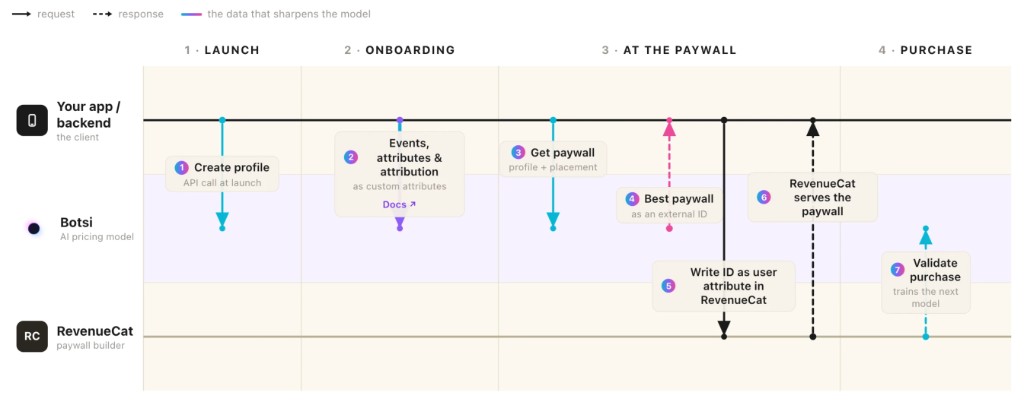
- Create a Botsi Profile at launch and keep the
profileId. - Send events, attributes, and attribution during onboarding so the model has signal.
- Call Fetch Paywall with the profile and placement → receive the predicted
externalId(andpaywallSessionId). - Set a RevenueCat custom attribute to that
externalId. - Call
syncAttributesAndOfferingsIfNeeded(), then fetch Offerings → RevenueCat Targeting Rules return the matching Offering. - Send
paywall_shownvia the Send Paywall Shown Event API when the paywall is presented. - Validate the purchase with Botsi after a successful RevenueCat transaction.
See the full API sequence in the AI Pricing Model API.
Matching Offerings and Paywalls#
Decide which prices you want to show, then configure Offerings in RevenueCat and matching Paywalls in Botsi with the same products.
If you use RevenueCat Offerings to control which products appear on a paywall, set up those Offerings with the products attached in the RevenueCat dashboard:
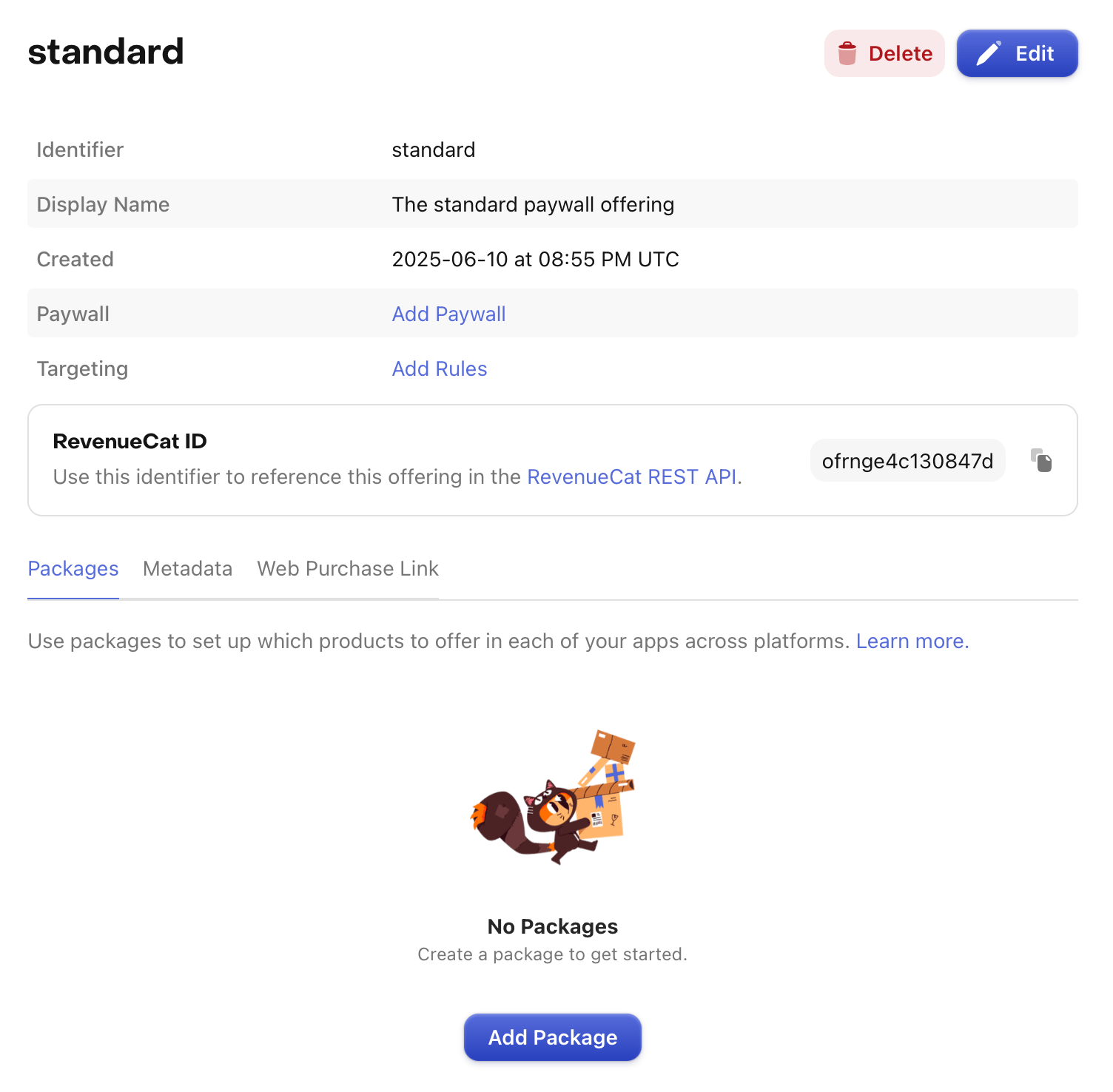
For several annual price points:
- Offering
default— annual →com.app.pro.annual_standard - Offering
discounted— annual →com.app.pro.annual_discounted
Then create corresponding Paywalls in Botsi and attach the same Products. That is what tells the model which prices are available to choose between.
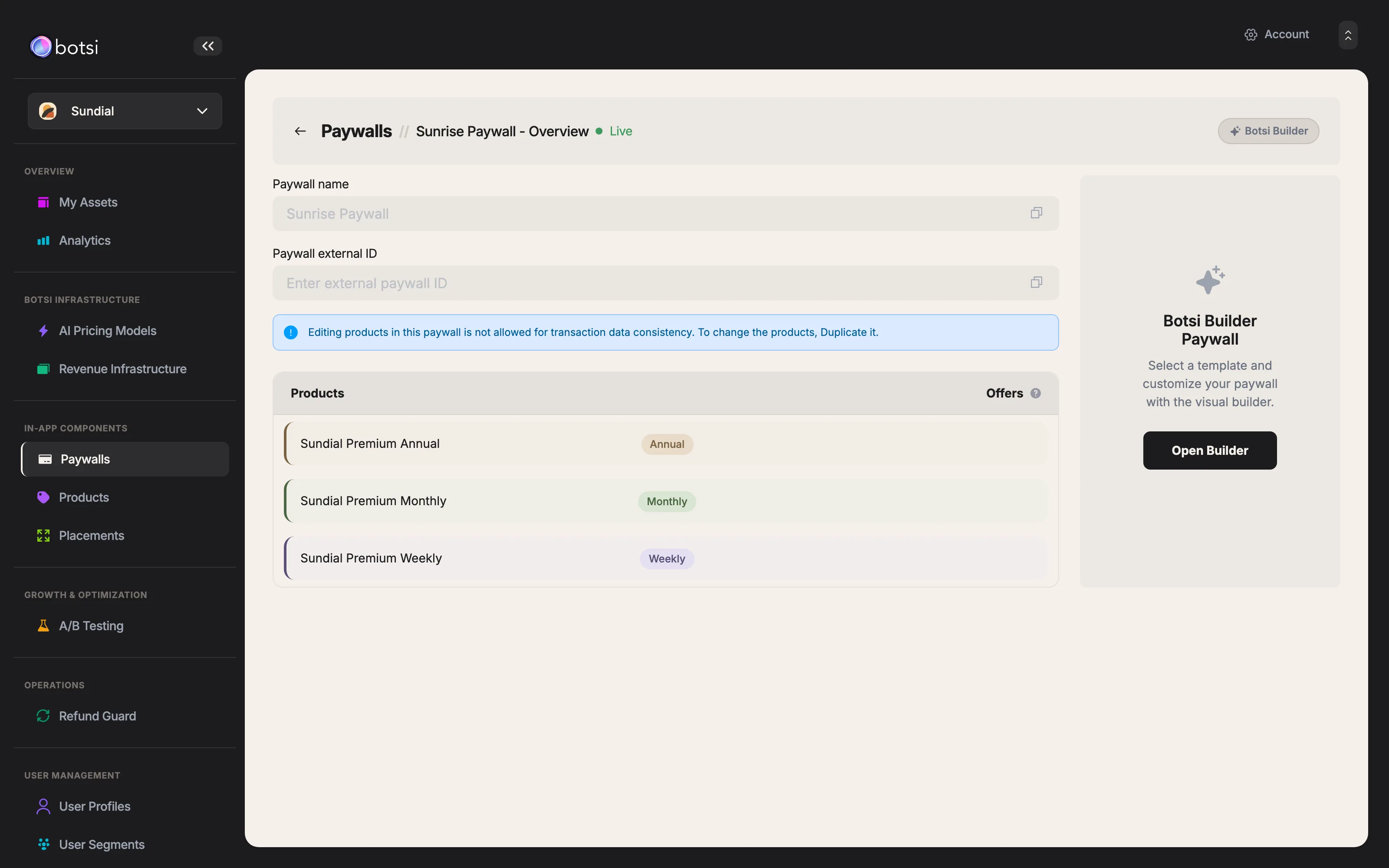
External ID and Fetch Paywall#
Set the external ID on each Botsi Paywall when you configure it. Any unique value works; a readable convention pays off when you see the same string in RevenueCat Targeting Rules and Botsi analytics (for example onboardingPaywall_29.99Annual_v2).
Fetch Paywall returns that value as data.externalId. You could use data.id instead, but it is a number you cannot set or recognize at a glance. Use externalId.
Targeting with a custom attribute#
Write the externalId into a RevenueCat custom attribute, then configure Targeting Rules to match on it. The attribute name is yours; something like botsi_paywall_id or botsi_paywall_prediction is legible to teammates. Use the externalId as the value.
Call syncAttributesAndOfferingsIfNeeded() before showing the paywall
By default, RevenueCat syncs attributes on configure, backgrounding, and purchase. Targeting that depends on a newly set attribute will miss it until that sync happens.
Call syncAttributesAndOfferingsIfNeeded() after setting the attribute and before fetching or displaying Offerings. Without it, the user sees the Offering that matched the previous attribute state.
// Set the custom attribute with Botsi's predicted paywall ID
Purchases.shared.attribution.setAttributes([
    "botsi_paywall_id": botsiExternalPaywallId
])

// Sync attributes and refresh offerings so targeting sees the new value
_ = try await Purchases.shared.syncAttributesAndOfferingsIfNeeded()

// Then fetch offerings / present your paywall as usual// Set the custom attribute with Botsi's predicted paywall ID
Purchases.sharedInstance.setAttributes(
mapOf("botsi_paywall_id" to botsiExternalPaywallId)
)
// Sync attributes and refresh offerings so targeting sees the new value
Purchases.sharedInstance.syncAttributesAndOfferingsIfNeeded { offerings ->
// Present the current offering from the refreshed result
}import Purchases from 'react-native-purchases';
// Set the custom attribute with Botsi's predicted paywall ID
Purchases.setAttributes({
botsi_paywall_id: botsiExternalPaywallId,
});
// Sync attributes and refresh offerings for targeting
await Purchases.syncAttributesAndOfferingsIfNeeded();
// Then fetch offerings / present your paywall as usualusing RevenueCat;
var purchases = GetComponent<Purchases>();
// Set the custom attribute with Botsi's predicted paywall ID
purchases.SetAttributes(new Dictionary<string, string> {
{ "botsi_paywall_id", botsiExternalPaywallId }
});
// Sync attributes and refresh offerings for targeting
purchases.SyncAttributesAndOfferingsIfNeeded();
// Then fetch offerings / present your paywall as usualSending the impression#
When the paywall is shown, send paywall_shown with the paywallSessionId from the Fetch Paywall response. Details: Send Paywall Shown Event.
Sending the purchase#
After a successful purchase through RevenueCat, extract the iOS transaction ID and original transaction ID, or the Android purchase token, and post them to the matching validate endpoint. See RevenueCat's making purchases docs for how each SDK surfaces transaction data.
let result = try await Purchases.shared.purchase(package: package)
if let tx = result.transaction {
    let appleTransactionId = tx.transactionIdentifier   // e.g. "2000001234567890"
    let originalTxId = tx.sk2Transaction?.originalID
    // POST /v2/purchases/apple-store/validate
}val result = purchases.purchase(activity, packageToBuy)
result?.let { tx ->
val purchaseToken = tx.purchaseToken // e.g. "abcdefhijklmnop..."
val orderId = tx.orderId // if you also need the Google orderId
// POST /v2/purchases/play-store/validate
}import Purchases from 'react-native-purchases';
const { customerInfo } = await Purchases.purchasePackage(pkg);
// For subscriptions, check customerInfo.entitlements
// For non-subscriptions, check customerInfo.nonSubscriptionTransactions
const transactions = customerInfo.nonSubscriptionTransactions;
if (transactions.length > 0) {
const transactionId = transactions[0].transactionIdentifier;
// iOS: POST /v2/purchases/apple-store/validate
// Android: POST /v2/purchases/play-store/validate
}using RevenueCat;
purchases.PurchasePackage(package, (productIdentifier, customerInfo, userCancelled, error) => {
if (!userCancelled && error == null) {
var transactions = customerInfo.NonSubscriptionTransactions;
if (transactions.Count > 0) {
var transactionId = transactions[0].TransactionIdentifier;
// iOS: POST /v2/purchases/apple-store/validate
// Android: POST /v2/purchases/play-store/validate
}
}
});See Validate Apple Store Purchase and Validate Google Play Store Purchase.
Forwarding subscription events to Botsi#
Use this if RevenueCat is your revenue infrastructure and you use Botsi for AI personalization rather than for revenue infrastructure. RevenueCat receives App Store Server Notifications directly, so forwarding them keeps Botsi's analytics and model data complete.
- In Botsi, copy your App Store Server Notifications URL from App Settings → iOS SDK → App Store Server Notifications. It looks like
https://api.botsi.com/v2/notifications/apple/{appId}/. - In RevenueCat, go to Apps → your iOS app → Apple Server to Server notification settings.
- Paste the Botsi URL into Apple Server Notification Forwarding URL and save.
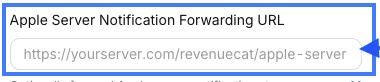
RevenueCat forwards Apple's notifications to Botsi as they arrive. See App Store Server Notifications.
Notes#
- Configure server-side notifications on both RevenueCat and Botsi for accurate analytics.
- The custom attribute you set must match the Targeting Rules in the RevenueCat dashboard, or targeting silently fails to match.
- Handle errors from both APIs. A failed Fetch Paywall should fall back to a known Offering rather than showing nothing.
- Test in sandbox before production.
- Call
syncAttributesAndOfferingsIfNeeded()after setting the attribute and before displaying the paywall. The method is rate-limited (typically five calls per minute); prefer calling it once per prediction, not on every UI refresh.